Techline Connect
Techline Connect — GM’s latest tool that brings together diagnostic information and vehicle data in one easy-to-use application.
Operating System Recommendations
Computer system recommendations for dealerships to ensure proper performance of the application include:
- Display: 15-inch high definition (HD) display
- Hard Drive: 500+ GB
- System Memory (RAM): 8GB
- Processor: Intel Core i7 5th Gen
- Operating System: Windows 10 Professional, 64 bit
Check the latest version of the GM Dealer Infrastructure Guidelines (DIG) for all required specifications.
Installation
You will need approximately 30 minutes to complete the full Techline Connect installation.
Techline Connect will install components to the local personal computer (PC), including Java and the application.
A Techline Connect User Guide also is included in the application download. It includes installation instructions and an overview of the application.
Getting Started
Techline Connect can be installed on a new PC as well as one that already uses TIS2Web and GDS 2.
To get started:
Log in to the TIS2Web main page using your GlobalConnect ID and password. Select the Techline Connect icon.
The download will install a Download Manager on the PC. The Download Manager will automatically download components such as GDS 2 application and data, large calibration files, MDI updates and other applications as well as updates to these applications, based on the version already installed on the PC. It also will automatically check for valid application leases and renew leases if necessary. Any updates to the application will download and install automatically.

On the initial installation of Techline Connect, the GDS 2 Diagnostic Package must be installed. The installation is done through the Manage Diagnostic Package function in GDS 2. When installing, answer “Yes” to keep previous GDS 2 sessions.
On new PCs, MDI Setup will need to be completed. The MDI software components are included in the Techline Connect download. On currently used PCs, the existing MDI setup will be used.
All applications will need to be set up to allow third party downloads in order for the latest updates to be downloaded and installed to keep all applications up to date.
Launching Techline Connect
Techline Connect manages the MDI connection as well as the vehicle connection, providing access to diagnostic data and vehicle information.
To launch the app:
Click the icon to launch Techine Connect.
Connect the MDI/VCI and establish the device connection.
With the MDI/VCI connected to the vehicle, select MDI from the MDI Explorer when prompted.
When a connection is established, Techline Connect will automatically connect to the vehicle and retrieve the VIN. The VIN and connection status are shown at the top of the dashboard. In addition, Investigate Vehicle History (IVH) information, Field Actions and Warranty History for the vehicle are automatically displayed.
From the Techline Connect Dashboard, users can access GM diagnostic applications, Service Information, and other functions in multiple panels or windows.

Support
Select the Support menu on the dashboard for a number of resources, including Feedback, SPS Info, Software Download, Techline Print, Help and other functions. For example, Tech2Win can be installed from Software Download and will function separately from Techline Connect.
A link to the Techline Connect User Guide as well as a short training video also are provided at the beginning of the application download process. Be sure to review both resources before using the application.
If you have any questions on Techline Connect, contact the Techline Customer Support Center (TCSC) at 1-800-828-6860 (English) or 1-800-503-3222 (French).
What is Techline Connect?
Techline Connect (formerly TIS2Web) rollout of the new application to dealerships begins in 2019 brings together all the common resources technicians use every day for diagnosis and repairs in one simple application. The all-new application has a single sign-on for access to nine applications — integrating Service Information, reprogramming, programing, diagnostics, vehicle information and other features — to help technicians efficiently and accurately manage the information available to them in the service department.
Like other tech companies that do not support older, out of date applications, GM cannot continue to support TIS2Web, which is based on legacy technology and outdated security applications. In addition to GDS2, other diagnostic features will be removed gradually until the full retirement of TIS2Web in mid- to late-2021.
Techline Connect supports all diagnostic tools available in TIS2Web and all development of future capabilities going forward will be focused on enhancing and expanding the Techline Connect experience.
The Techline Connect application has a single sign-on for access to nine applications, seamlessly integrating Service Information (SI), a scan tool (GDS2), the Service Programming System (SPS2), and other applications with vehicle-specific information. All information and applications are available on a technician friendly dashboard with an intuitive interface that also automatically displays Investigate Vehicle History (IVH) information, Field Actions, and Warranty History when connected to a vehicle.
GM account login
Login account is a required request when you proceed to install Techline Connect.
Like TIS2Web, installation of Techline Connect requires the use of Administrative Rights. During installation, if the PC doesn’t have the correct rights, the user will most likely be unable to perform completion of the installation.
Also, account should be maintained login when using SI (Service Information) and SPS2 (Service Programming System).
Si (Service Information)
Keep your shop informed and up to date with the most current and accurate repair data. Service Information, or Si, is a comprehensive collection of vehicle diagnostic and service repair manuals for GM vehicles—so your shop has everything you need to perform safe, proper repairs.
Select the SI tab to begin using the Service Information or enter a keyword in the keyword entry function on the far right of the dashboard. Techline Connect uses the connected VIN or the vehicle built in the Vehicle Selection drop-down menu to search SI. Several SI documents can be opened at the same time.
Note: When using SI (Service Information), you need to login GM account on Techline Connect online
The features Si (Service Information):
- Provides the most accurate and current repair information, to GM Original Equipment quality standards
- Delivers collision repair procedures, frame-sectioning information, panel-replacement procedures, and recall information
- Empowers your shop with service repair information to repair GM vehicles quickly and accurately
- Speeds up service repairs and controls costs by helping your complete jobs correctly the first time
- Features an expansive library of information that covers vehicle manuals, specifications, service bulletins, VIN tags, and more
Subscription Includes
- GM Vehicle Diagnostic Service (1998-present)
- Collision Repair Manuals (1998-present)
- Frame sectioning information, panel replacement procedures, and recall information
- Campaigns, service bulletins, and preliminary information for GM (1980-present)
- GM Owner’s Manuals and glove box supplements (2003-present)
- Easy-to-use keyword/document/number search
GDS2 (GLOBAL DIAGNOSTIC SYSTEM 2)
GDS2 is the diagnostic scan tool required to use MDI, MDI2 or J2534. It allows technicians to scan the vehicle for data and trouble codes. GDS2 is supported in 2014 and newer models. Support on earlier model year vehicles varies between Tech2Win and GDS2 software.
Techline Connect also does not require an internet connection to use GDS2 Diagnostics, thanks to the Stand-alone Mode. Bypass the log-in by selecting Stand-alone Mode from the log-in screen. Techline Connect will open with only the GDS2 icon. There will be no connection to the Service Information and programming. In the Stand-alone Mode, Techline Connect uses the MDI and vehicle connection function to establish vehicle communications.
Note: GDS2 can use 180 days offline without login in GM account. After 180 days you need to login to GM account for Techline Connect to renew the expiration date for GDS2
The features GDS2
- Multiple Languages
- GDS2 can be used offline for 180 days
- Read codes, code status, freeze frame data, and clear codes
- Read VIN, ECU part numbers, and software numbers
- Record, store, and replay stored data
- Control and monitor output control functions
- Configure and reset functions
- Record or display history of previous vehicle diagnostic sessions
Support models:
GDS2 support diagnostic for GM Global and Vinfast
Make support for GM Global:
– Buick
– Cadillac
– Chevrolet
– GMC
– Ravon
– Holden
– Daewoo
GDS not support for Opel and Vauxhall
| 2007 AND ALL PRIOR MODEL YEARS | 2008 MODEL YEAR | 2009 MODEL YEAR | 2010 MODEL YEAR |
| No GDS2-support All model year 2007 and prior supported by Tech2/Tech2Win* | GDS2-supported vehicles: Chevrolet HHR (EUR)ALL others supported by Tech2/Tech2Win* | GDS2-supported vehicles: Chevrolet HHR (EUR) Daewoo Lacetti ALL others supported by Tech2/Tech2Win* | GDS2-supported vehicles: Buick Allure Buick LaCrosse Cadillac SRX Chevrolet Beat Chevrolet Camaro Chevrolet Cruze Chevrolet Equinox Chevrolet Sail Chevrolet Spark Daewoo Lacetti Daewoo Matiz GMC Terrain Holden BarinaSpark Holden Cruze Saab 9-5 ALL others supported by Tech2/Tech2Win* |
| 2011 MODEL YEAR | 2012 MODEL YEAR | 2013 MODEL YEAR | 2014 AND ALL FUTURE MODEL YEAR VEHICLES |
| GDS2-supported vehicles: Buick LaCrosse Buick Regal Cadillac SRX Chevrolet Beat Chevrolet Camaro Chevrolet Captiva** Chevrolet Cruze Chevrolet Equinox Chevrolet Orlando Chevrolet Sail Chevrolet Spark Chevrolet Tavera Chevrolet Volt Daewoo Alpheon GMC Terrain Holden BarinaSpark Holden Captiva 5 Holden Captiva 7 Holden Cruze Saab 9-4 Saab 9-5 ALL others supported by Tech2/Tech2Win* | GDS2-supported vehicles: Buick LaCrosse Buick Regal Buick Verano Cadillac SRX Chevrolet Aveo Chevrolet Beat Chevrolet Camaro Chevrolet Captiva** Chevrolet Cobalt Chevrolet Colorado Chevrolet Cruze Chevrolet Enjoy Chevrolet Equinox Chevrolet Malibu Chevrolet Orlando Chevrolet S10 Chevrolet Sail Chevrolet Sonic Chevrolet Spark Chevrolet Tavera Chevrolet Volt Daewoo Alpheon GMC Terrain Holden Barina Holden BarinaSpark Holden Captiva 5 Holden Captiva 7 Holden Colorado Holden Cruze Holden Malibu Saab 9-4 Saab 9-5 ALL others supported by Tech2/Tech2Win* | GDS2-supported vehicles: Buick Encore Buick LaCrosse Buick Regal Buick Verano Cadillac ATS Cadillac SRX Cadillac XTS Chevrolet Aveo Chevrolet Beat Chevrolet Camaro Chevrolet Captiva** Chevrolet Cobalt Chevrolet Colorado Chevrolet Cruze Chevrolet Enjoy Chevrolet Equinox Chevrolet N300 Chevrolet Malibu Chevrolet Onix Chevrolet Orlando Chevrolet Prisma Chevrolet S10 Chevrolet Sail Chevrolet Sonic Chevrolet Spark Chevrolet Spin Chevrolet Tavera Chevrolet Tracker Chevrolet Trailblazer Chevrolet Trax Chevrolet Volt Daewoo Alpheon GMC Terrain Holden Captiva 5 Holden Captiva 7 Holden Barina Holden BarinaSpark Holden Colorado Holden Colorado 7 Holden Cruze Holden Malibu Holden Trax Holden Volt ALL others supported by Tech2/Tech2Win* | GDS2-support ALL 2014 model year and future model years are supported by GDS2 |
SPS2 (Service Programming System)
The Service Programming System (SPS) is a PC application that updates (programs or reprograms) the flash calibration files that are stored in a vehicle’s ECM. To do this, the application reads VIN information from the vehicle, extracts the correct update data from the SPS application’s data files, then updates the vehicle reprogrammable memory with the data.
The Service Programming System (SPS2) is integrated in Techline Connect too, so it’s easy to update the calibration files of a vehicle’s control modules using pass-thru programming. The difference between the current SPS and the SPS2 in Techline Connect is that the vehicle connection is already established in the Techline Connect dashboard. There is no need to build the vehicle. Navigate SPS2 as you normally would for programming and other setup/configuration functions.
Note: SPS2 (Service Programming System), you need to login GM account on Techline Connect online
Supported Hardware
- GM MDI
- GM MDI 2
- J2534 device
System Requirements:
- OS: Windows: 10, 11 64 Bit
- Free hard drive: 15 GB or more
- CPU: Core i3 or above
- Ram: 4GB or more
Recommendations
Prior to installation of Techline Connect on a PC, ensure it meets the requirements of Windows 10 Professional, 8 GB RAM or more and 100 GB of free drive space.
Computer system recommendations for dealerships to ensure proper performance of the application include:
- Display: 15-inch-high definition (HD) display
- Hard Drive: 500+ GB
- System Memory (RAM): 8GB
- Processor: Intel Core i7 5th Gen
- Operating System: Windows 10 Professional, 64 bit
RESOLVING SERVICE PROGRAMMING ERRORS
When encountering a Service Programming System (SPS) error, follow the instructions for the error code, which will assist in understanding its cause and how to resolve it without replacing the control module. Error codes can include: E4398, E4399, E4403, M4404, M4413, E4414, E4423, E4491 and E6961.
Below are three common errors and how to correct them. For information on other error codes and how to address them.
E4398 — NO CALIBRATION DATA
CAUSE:
This error is the result of a missing or incomplete data record. The error is not related to the module being programmed or a vehicle issue.
RESOLUTION:
Contact the Techline Customer Support Center
E4399/E4403 — SEVERE ERROR
CAUSE:
This error typically stems from a loss of communication between the programming device and the module — which can be caused by either a drop in battery voltage, a delay in communication with the module or a vehicle issue, such as an interruption on the BUS (wiring, connector issue, aftermarket components, etc.).
RESOLUTION:
Maintain a minimum of 12.5 volts during programming. Attempt to reestablish communication with the module. This should first be done with GDS2 or Tech 2. If communication can be established, reattempt programming using “Replace and Program ECU” as the programming method.
If communication cannot be reestablished, deplete retained power by disconnecting the negative battery terminal for a minimum of 5 minutes. Reestablish and maintain battery power, and then attempt to communicate with the control module using MDI or Tech 2. Reattempt programming using “Replace and Program ECU.”
Some earlier model vehicles (pre-2007) may require the use of the Tech2 and “Legacy Tech 2” programming option in SPS in order to utilize a slower programming communication speed.
M4413/E4414 — CALIBRATIONS MARKED WITH AN ASTERISK (*)
CAUSE:
An asterisk (*) indicates that the SPS application is not recognizing the calibrations being read from the control module. This can be caused by a non-GM calibration programmed into the control module or an incomplete SPS data record.
RESOLUTION:
Refer to the latest version of SI Bulletin #08-06-04-006. If this information does not apply, restart the SPS application and select “Replace and Reprogram” as the programming method. This procedure will overwrite the unidentified software and calibrations.
Programming with Same Calibration
In an effort to decrease the number of unneeded programming events, reduce the risk of programming-induced faults, and support timely vehicle repairs, the Service Programming System (SPS) has been updated recently to prohibit or warn users against programming a control module with the same calibration that is already present in the control module. This SPS change prohibiting reprogramming using the same calibration applies to all 2017-2018 Buick, Cadillac, Chevrolet and GMC models.
Prohibited Programming
On 2017 and newer models, reprogramming a control module with the same calibration that is already in the control module will be prohibited by SPS. Users who attempt to reprogram a control module with its current calibration will receive the warning message “You are attempting to reprogram with the same calibration. This is not allowed for the selected ECU.” Selecting OK will end the programming event.
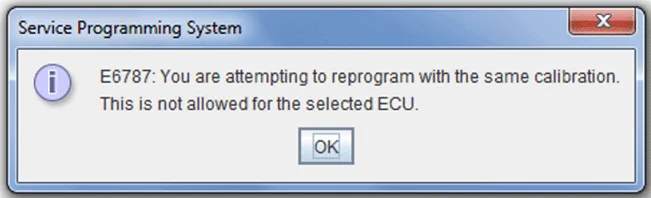
Warning on Same Calibration
On 2016 and older models, programming a control module with its current calibration is not prohibited, but is not a recommended service procedure. Users who attempt to reprogram a control module with the same calibration will receive a warning message.
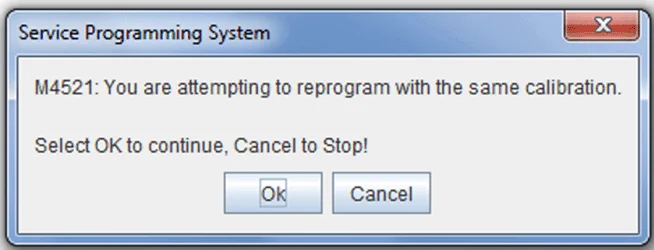
Selecting Cancel will stop the programming event. If OK is selected, a second warning will appear.
Reprogramming with the same calibration is not recommended, but selecting OK again on the second warning message will allow the programming event to proceed.
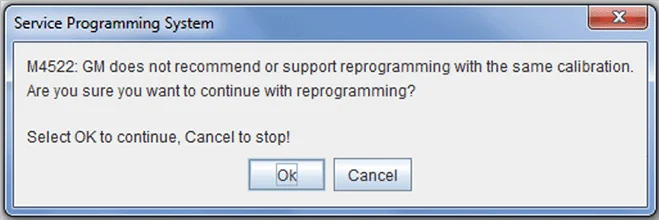
These warning messages do not indicate an issue with the control module in question and that it should be replaced, only that the control module already has the calibration being programmed. Follow the diagnostic procedure in the appropriate Service Information to determine the root cause.
MDI 2 FOR NEXT-GENERATION APPLICATIONS
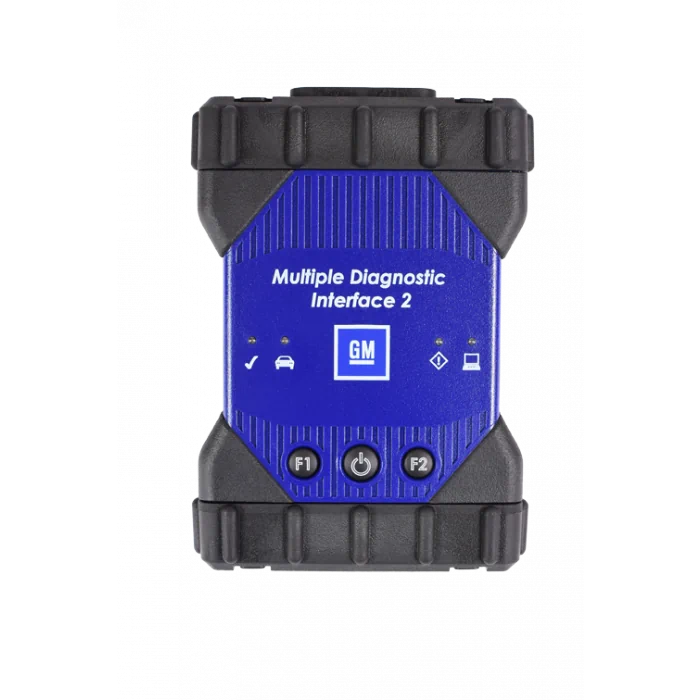
As the Next-Generation Digital Vehicle Platform continues to roll out, it will help power some of GM’s all-new models and systems — including electric vehicles, the 2020 Chevrolet Corvette, the Cadillac CT4 and some safety, infotainment and connectivity features. This will require using MDI 2 (Multiple Diagnostic Interface) should any diagnosing or programming be necessary for these applications.
These Next-Generation Digital Vehicle Platforms introduce new communication protocols such as CANFD (CAN Flexible Data) and DoIP (Diagnostics over Internet Protocols). Only the MDI 2 (Multiple Diagnostic Interface) can support the new CANFD protocol and Ethernet protocols for programming and diagnostics.
When diagnosing and programming a vehicle that employs one of these platforms, the EL-52100 MDI 2 must be used. EL-47955 MDI 1 does not have the capability to complete programming or setup procedures for these specific applications. Using MDI 1 could result in erroneous data or failed programming events that could lead to unnecessary module replacement.
TIP:
When programming a vehicle with the Next-Generation Digital Vehicle Platform, the vehicle must be in a Key Off power mode to successfully perform an SPS event. Also, be sure to follow the on-screen vehicle programming prompts during the process.
Changing the Diagnostic Tool Selection in TIS2Web
GM has recently updated the Service Programming System (SPS) with a new method of selecting a J2534 tool in TIS2Web.
A J2534 tool (MDI, MDI 2, or other J2534 device) is required in order to manage the transfer of data between a vehicle’s onboard network and a service technician’s PC. J2534 is an interface standard designed by the Society of Automotive Engineers (SAE) and mandated by the US Environmental Protection Agency (EPA) for vehicle Electronic Control Unit (ECU) reprogramming.
Selecting a Diagnostic Tool
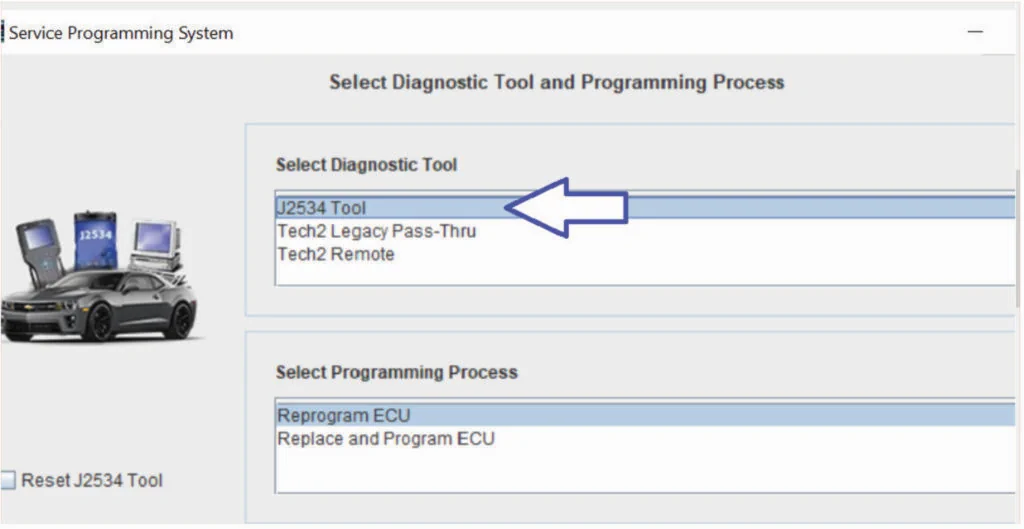
From the Select Diagnostic Tool and Programming Process screen, select the J2534 Tool option for all J2534 tools (MDI, MDI 2, or other J2534 device).
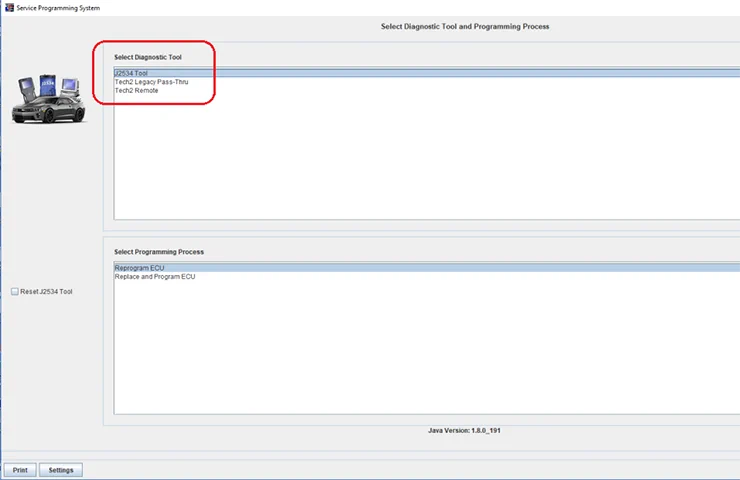
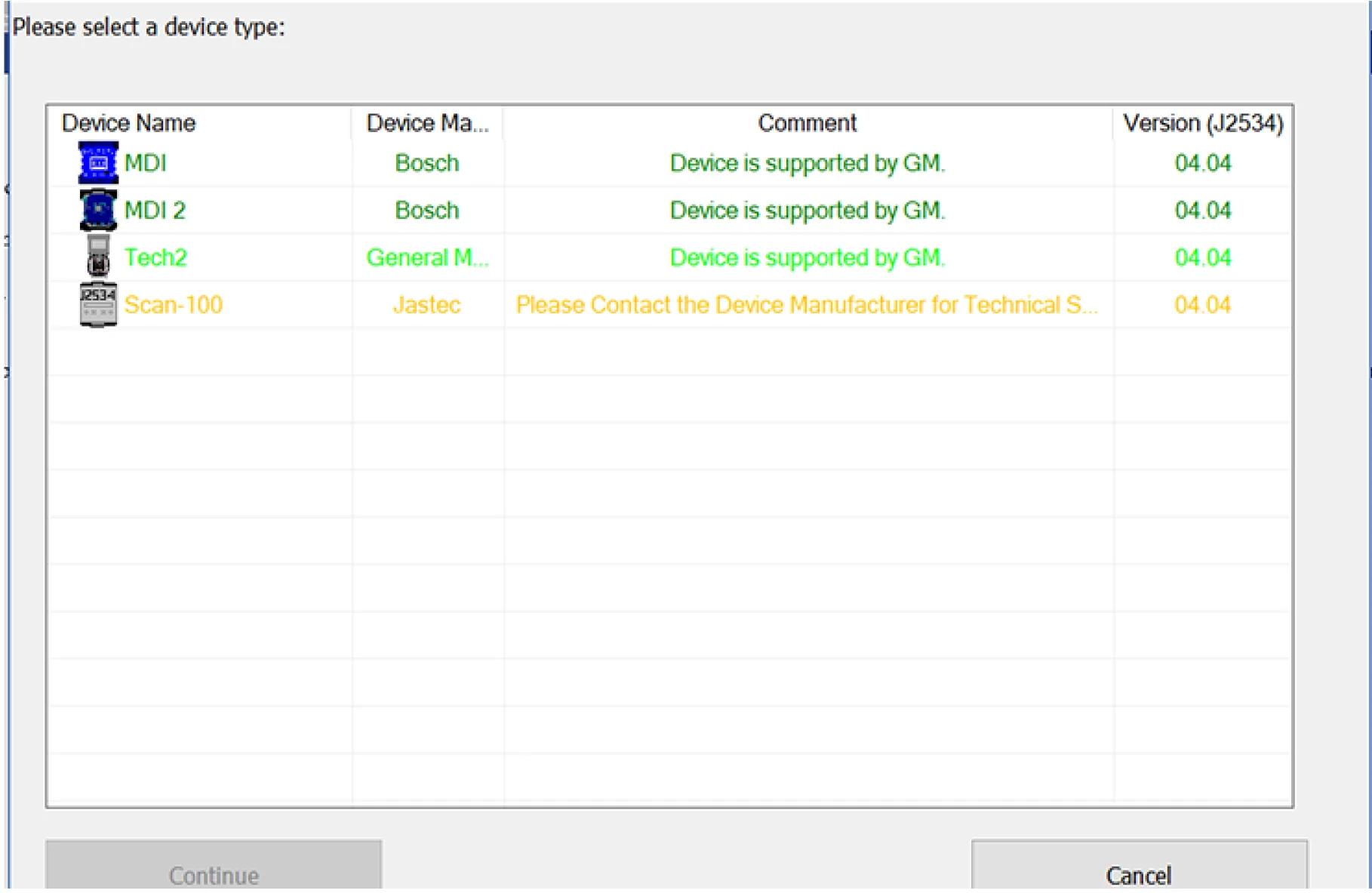
The first time the J2534 Tool option is selected, a screen will appear asking the user to select a device type, such as the MDI, MDI 2 or other tool.
Changing a Diagnostic Tool Selection
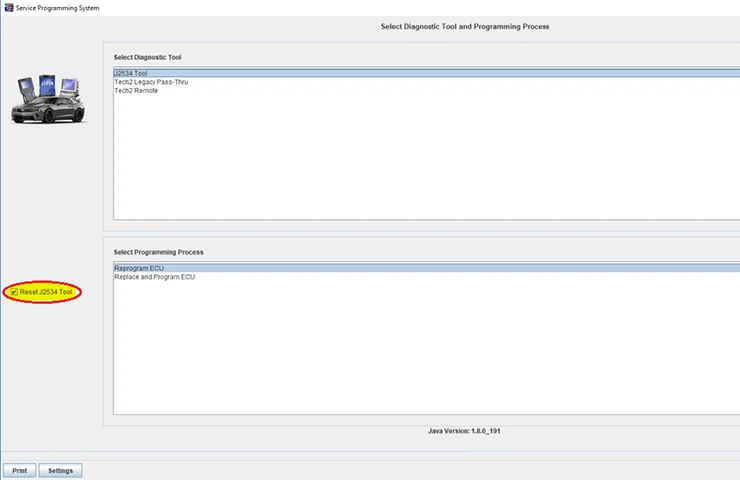
Once a J2534 tool has been selected, reprogramming of a control module can be completed. If the J2534 tool selection needs to be changed, there is now a check box that must be selected next to the Select Programming Process menu on the Select Diagnostic Tool and Programming Process screen. Select the Reset J2534 Tool box and then select Next to set up a different J2534 tool.
New Tool Selection Method in TIS2WEB
Because of a recent update to the GM Service Programming System (SPS), a new method is available for selecting a J2534 tool in TIS2Web.
A J2534 tool (MDI, MDI 2, or other J2534 device) is required to manage the transfer of data between a vehicle’s onboard network and a service technician’s PC.
J2534 is an interface standard designed by the Society of Automotive Engineers (SAE) and mandated by the Environmental Protection Agency (EPA) for vehicle Electronic Control Unit (ECU) reprogramming.
Choosing a Tool
From the Select Diagnostic Tool and Programming Process screen, choose the J2534 Tool option for all J2534 tools (MDI, MDI 2 or other J2534 device).The first time that the J2534 Tool option is selected, a screen will appear (see graphic) asking the user to select a device type, such as the MDI, MDI 2 or other tool.
Changing a Selection
After choosing a J2534 tool, complete reprogramming of the control module. If the J2534 tool selection needs to be changed, mark the check box next to the Select Programming Process menu on the Select Diagnostic Tool and Programming Process screen. Next, choose the Reset J2534 Tool box and then select Next to set up a different J2534 tool.

- J2534 Pass-Thru Programmer: TOPDON RLink J2534 is an advanced diagnostic and reprogramming tool that support all J2534 protocols, as well as D-PDU, CAN-FD and DoIP, ensuring compatibility with a wide range of modern vehicles. It offers extensive versatility with support for over 18 major automotive brands, including Chrysler, Ford, GM, Nissan, Toyota, Honda, Subaru, Land Rover/Jaguar, Volvo, Wuling, Volkswagen/Audi, Mercedes-Benz, and BMW. NOTE: Not compatible with Ford IDS diagnostic software
- All-in-One OEM Diagnostics: This J2534 ECU programming tool elevates your automotive repair capabilities to new heights by delivering complete OEM diagnosis. Boasting comprehensive full-system diagnostics, intuitive repair guides, advanced ECU programming and coding, common reset services, a vast library of repair information and more, this all-in-one solution empowers technicians to effortlessly tackle complex vehicle issues with ease. *Not compatible with 24V vehicles
- Proven Performance You Can Trust: Backed by over 10000 real vehicle tests and benefit from a wealth of practical experience, this OEM reprogramming tool guarantees stable and exceptional performance. Supported by TOPDON's dedicated technical experts with in-depth knowledge of both auto repair and J2534 Pass-Thru programming, the RLink J2534 provides prompt and professional assistance, ensuring a smooth setup and reliable compatibility
- Integrated Excellence, Always Up-to-Date: Featuring the exclusive RLink Platform to provide a streamlined experience with one-click driver installation and management, ensuring flawless integration with your OE software, maintaining the original performance quality. The built-in operation guide makes mastering OE software quick and easy, so you can get started right away. Plus, with lifetime free updates, your diagnostics will stay current with the latest drivers and innovations
- Efficiency Meets Versatility: Engineered to support three CAN channels simultaneously - CAN FD and CAN-CC included, giving you the edge in fast troubleshooting. To perfectly synchronized with the OE software, please diagnose with active subscriptions and make sure your computer system is running a compatible 64-bit Windows version (7, 8, 10 or later) to fully leverage the power of RLink J2534. *We don't provide extra OE software

- Advanced VCI Box, Industry-leading J2534 Pass-Thru Technology: This J2534 Pass-Thru Programmer is designed espically for technicians, independent shop owners, and DIY enthusiasts, enables fast, reliable computer-based programming. It supports all J2534 protocols—including the latest DoIP and CAN FD—ensuring full compatibility with both legacy and next-generation vehicles.
- High-Speed OEM-Level Diagnostics & Programming: Unlock true OEM functionality with comprehensive system diagnostics, guided troubleshooting, coding, adaptations, resets, and programming—all designed to slash repair time. This all-in-one tool eliminates the need for multiple OEM devices, boosting efficiency and cutting costs. Equipped with High-Speed USB, it delivers 10x more data per second than competing solutions
- Coverage for 17 Car Brands & Ultra Reliability: Works seamlessly for Chrysler, for Ford(Forscan), for GM, for Nissan, for Toyota, for Honda, for Subaru(SSM4), for Land Rover/Jaguar, for Volvo, for Wuling, for Volkswagen, for Mercedes-Benz, and for BMW. Backed by over 10000 real vehicle tests and benefit from a wealth of practical experience, this OEM reprogramming tool guarantees stable and exceptional performance
- User-Friendly RLink Platform & Expert Support: TOPDON’s proprietary driver management platform offers a clean interface and lifetime free updates. Access a rich library of real-world case studies to stay ahead of the curve. Backed by a support team with 10+ years of J2534 and automotive repair experience, we provide one-on-one assistance to resolve any technical issue.
- 6.6 ft USB-C Cable & Portable Storage Case: The RLink J2534 diagnostic tool features a 6.6ft USB 2.0 Cable and a 1.2 ft OBDII Extension Cable, allows to connection your computer easily outside the vehicle. The included handled carry case offers easy portability, storage, and hanging options—keeping your gear clean and ready to go, anywhere.

- Dual WiFi & 10.1" Touchscreen: Provides a stable, high-speed wireless link 3x faster than bluetooth, and a responsive, professional interface. Topdon ONE obd2 scanner diagnostic tool ensures smooth, non-lagging diagnostic scan, boosting mechanic efficiency
- J2534 Pass-Thru Support: The included ONE VCI supports the J2534 standard, allowing it to function as a pass-thru device when paired with OEM diagnostic software.Through TOPDON’s RLink platform, technicians can perform dealer-level coding, expanding in-house capabilities without investing in multiple factory automotive scan tools
- OE Topology Mapping: Visualize the vehicle’s ECU network exactly as it’s built.Zoom, pan, and highlight specific modules to pinpoint component issues with precision.Topology mapping displays real-time communication between modules
- 50+ Service Functions: Covers high-demand services like ADAS calibration, DPF regen, TPMS reset, ABS bleed, and throttle adaptation.Expands your service menu, allows you to charge premium rates, and turns away zero jobs due to lack of tooling. Vehicle-specific functionality may vary
- Advaned ECU Coding: 10 of the most serviced brands in North America, including full ECU coding and flash hidden support for BMW, VW, Au-di, Benz, Porsche, Toyota, Ni ssan and more. Enables module replacement, feature customization, and personal settings with automatic backup or restore.Lets your shop safely offer high-margin customization services, attracting more customers and boosting profit

- [J2534 Pass-Thru Programmer] - TOPDON RLink J2534 is engineered for professional technicians, delivering OEM diagnostic and reprogramming capabilities. It supports all J2534 protocols, CAN-FD, DoIP, D-PDU. Compatible with 17 vehicle brands—such as Chrysler, Ford, GM, KIA, Hyundai, Nissan, Toyota, Honda, Subaru, Mitsubishi, MAZDA, Land Rover/Jaguar, Volvo, Volkswagen/Audi, Mercedes-Benz, and BMW. RLink J2534 can help reduce the cost of purchasing equipment from different brands.
- [All-in-One OEM Reprogramming and Diagnostics] - When seamlessly integrated with OEM diagnostic software, this dongle enables you to perform a wide range of functions, including ECU programming and coding, DTC reading and clearing, active tests, component matching, adaptations, rewriting, guided troubleshooting, and more. This all-in-one tool eliminates the need for multiple OEM devices, significantly boosting work efficiency.
- [Tested, Trusted, and Proven for Accuracy] - TOPDON RLink J2534 is renowned for its reliability, having successfully completed over 10,000 real-vehicle tests. The wealth of data and hands-on experience behind it ensures consistent performance and accurate results. You can trust this tool to deliver optimal performance.
- [One-Click Installation, Continuous Updates] - The exclusive TOPDON RLink platform streamlines installation with a one-click driver setup, allowing you to quickly access OEM software for diagnostic and reprogramming tasks. With lifetime free updates, your RLink J2534 stays current without any additional cost, ensuring reliable performance for the long term. *We don't provide extra OE software.
- [Works with Windows Compatibility and OEM Software Subscription] - The RLink J2534 supports three CAN channels - including CAN FD and CAN-CC, providing advantages in the process of rapid troubleshooting. Compatible with Windows 7, 8 and 10 (64-bit) and higher versions of the system. For full functionality, an active OEM software subscription is required for each supported vehicle brand. Please note that the dongle does not include OEM software, which must be purchased separately to access brand-specific diagnostic and reprogramming features.

- 【J2534 Pass-Thru Device】 This budget-friendly J2534 pass-thru device delivers OEM diagnostics and reprogramming capabilities for dealerships, repair shops and automotive DIY enthuisasts, enables you diagnose, program and repair the vehicles more efficiently and precisely. Supporting J2534, D-PDU, CAN-FD and DoIP, this J2534 passthru tool ensures wide vehicle coverage. It's compatible with OE software application, ensuring seamless integration and original performance quality
- 【All-in-One Diagnostic Tool】 Simplify your workflow and tackle the complex diagnostics and repairs with confidence! This J2534 passthrough tool provides full system diagnosis, bi-directional control, maintenance reset services, ECU programming and ECU coding to run advanced diagnostics and programming. Equipped with the specialized platform, this J2534 pass-thru tool is fully compatible with OE software that helps technicians confidently handle complicated vehicle repair issues
- 【J2534 Diagnostic Tool】 The Tabscan J2534 pass-thru device is built with a dedicated platform, making it ideal for both professional and personal use. Simply download the driver for your ford vehicle within the platform—ensuring only one driver is installed at a time. Then connect the device to your vehicle’s OBD2 port and link it to your computer using the included USB A to USB C cable. Finally launch your OE software, select Tabscan J2534 VCI as interface, and begin diagnose and program
- 【Universal Compatibility】 Tabscan J2534 reprogramming tool is designed to be compatible with Ford vehicles for advanced diagnostics and programming. It supports J2534 protocols, along with D-PDU, CAN-FD and DoIP, ensuring seamless connectivity with older or modern vehicles. This J2534 diagnostic tool only works with computer running on windows 7/10/11. Vehicle compatibility varies by model or year, please confirm with us before purchase. Note: It's not compatible with 24V vehicles
- 【Professional Technical Support】 Tabscan J2534 pass-thru device provides a stable and seamless connection between your vehicle and computer for diagnostics, programming, and coding. But that's not all—we go beyond hardware. Our dedicated technical support team brings deep expertise in automotive diagnostics and programming. Whether you need help with setup, troubleshooting or latest diagnostic resources and upgrades, we provide fast, professional and reliable support every step of the way
This product presentation was made with AAWP plugin.